

The default theme (Blogs Helsinki 2026) includes a few unique templates for both Page and Post content types. This section lists those templates and provides a guide on how to use them on individual posts and pages, as well as how to modify or remove elements within each template.
Please note that template elements are not tied to individual pages or posts. Any modification you make to a template will automatically affect every page or post that uses that template, except for content‑specific features like featured images.
Templates for Pages
The Blogs Helsinki 2026 theme includes several templates for Page‑type content (in addition to the Default template). These templates are mainly intended for creating a unique front page or an introduction page for your site.
Default template
This is the standard template for pages. It simply displays the page content you create with the block editor, without any additional sections or sidebar elements.
Page with Sidebar
In addition to the page content, this template displays a sidebar containing the following elements:
- About us– A section where you can add a custom image and introduction text.
- Latest posts– Lists the five most recent Post‑type items on your site.
- Categories– Displays the post categories available on your site.
- Archive– Shows the monthly archive of your posts.
- Follow us– Allows you to edit or add your social media links. (By default, these links point to the University of Helsinki’s social media accounts, but you can change them or hide the element altogether by following this guide.)
Example use case: Use this template for your site’s front page to introduce your project and display useful additional information in the sidebar, such as recent posts, categories, and social links.
Post list with Sidebar
This Page template includes the same sidebar elements as the Page with Sidebar template. However, instead of displaying the page’s own content, it replaces it with a list of your site’s posts, ordered from newest to oldest.
In practice, this template functions similarly to WordPress’s built‑in “Your latest posts” front‑page setting — but with the added benefit of displaying the sidebar content.
Please note that you still need to create a dedicated Page and assign this template to it, even though the page itself will not display its own content.
Example use case: Create an empty page that uses this template and set it as your front page. This allows you to show your latest posts along with additional information provided in the sidebar.
Templates for Posts
Default template
This template shows the full content of the post and includes Previous and Next links at the bottom of the page, allowing users to navigate between posts in chronological order.
Single Post with Sidebar
This template displays the post content along with a sidebar on the right. The sidebar includes the following elements:
- Latest posts – Automatically lists the five most recent Post‑type items on your site.
- Archive – Displays the monthly archive of your posts.
- Follow us – Allows you to edit or add social media links. (By default, these links point to the University of Helsinki’s official social media pages, but you can update them to your own or hide the element entirely by following this guide.)
Single Post with Table of Contents
This template displays the post content along with a sidebar on the left that automatically generates a Table of Contents for the article.
The Table of Contents includes:
- The post title as the main heading (H1)
- All H2 and H3 headings within the post, based on the Heading blocks you have added
This provides an easy way for readers to navigate longer articles.
Single Post with Sidebar and Table of Contents
This template combines the features of the two previous templates — Single Post with Sidebar and Single Post with Table of Contents.
It displays:
- The post content
- A left‑hand sidebar with an automatically generated Table of Contents
- A right‑hand sidebar with elements such as Latest posts, Archive, and Follow us
This layout is especially useful for long posts that also benefit from additional contextual information in the sidebar.
Using and Editing the Templates
How to apply templates to content
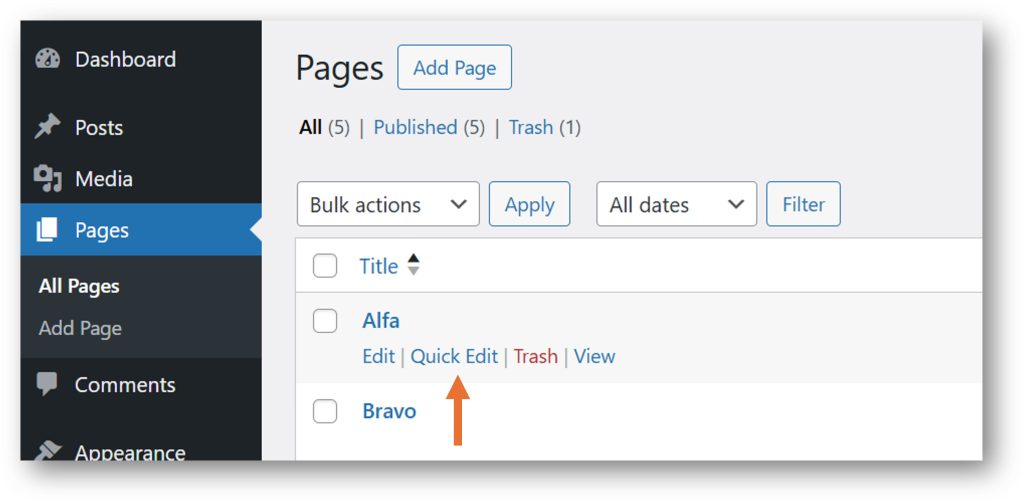
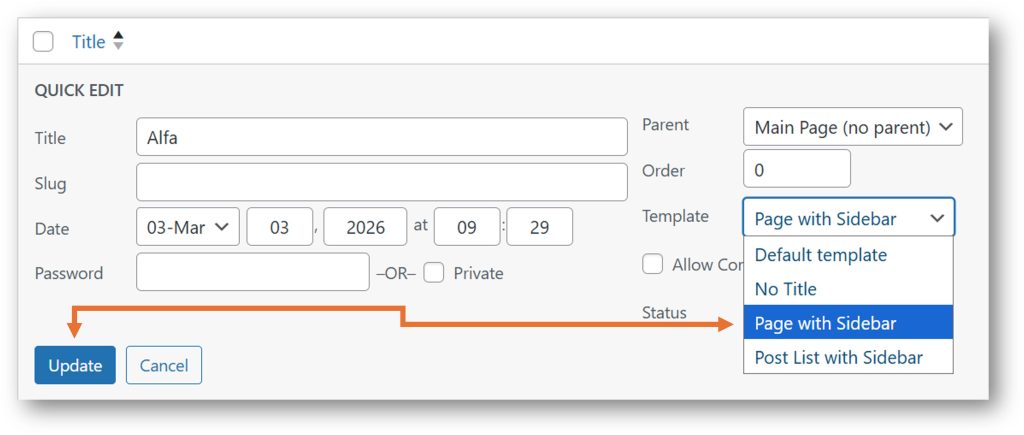
When you have created your Posts or Pages, you can change the template for individual items from your blog’s dashboard. In the Posts or Pages view, hover over the content you want to modify, select Quick Edit, choose the desired template from the Template dropdown menu, and finally click Update.
How to edit templates and hide elements
If you want to edit template elements or hide them, you can do this in several areas of your blog. In the following tutorial, we will hide the Follow us element from the Sidebar pattern in the Page with Sidebar template, using the Appearance editor.
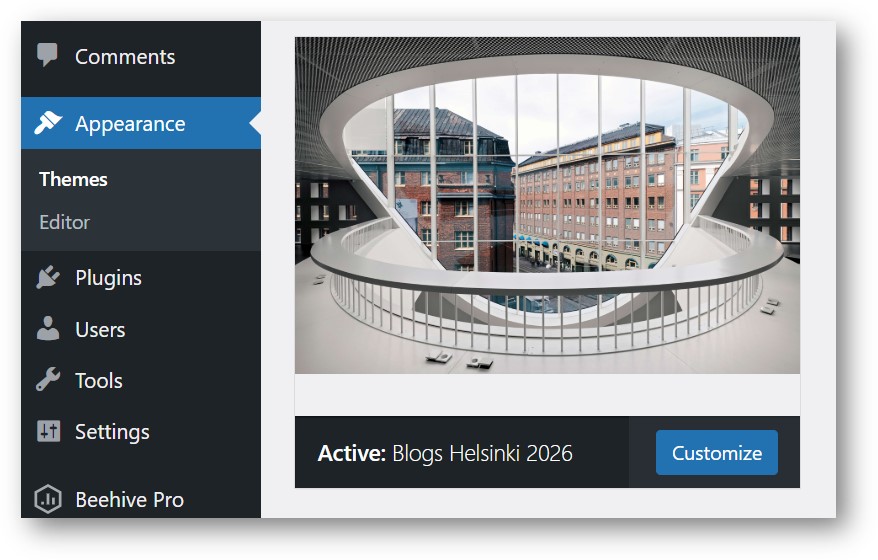
1. From your blog dashboard, open Appearance, choose Themes, and then click Customize on the Blogs Helsinki 2026 theme.
2. Next, select Templates under Design.
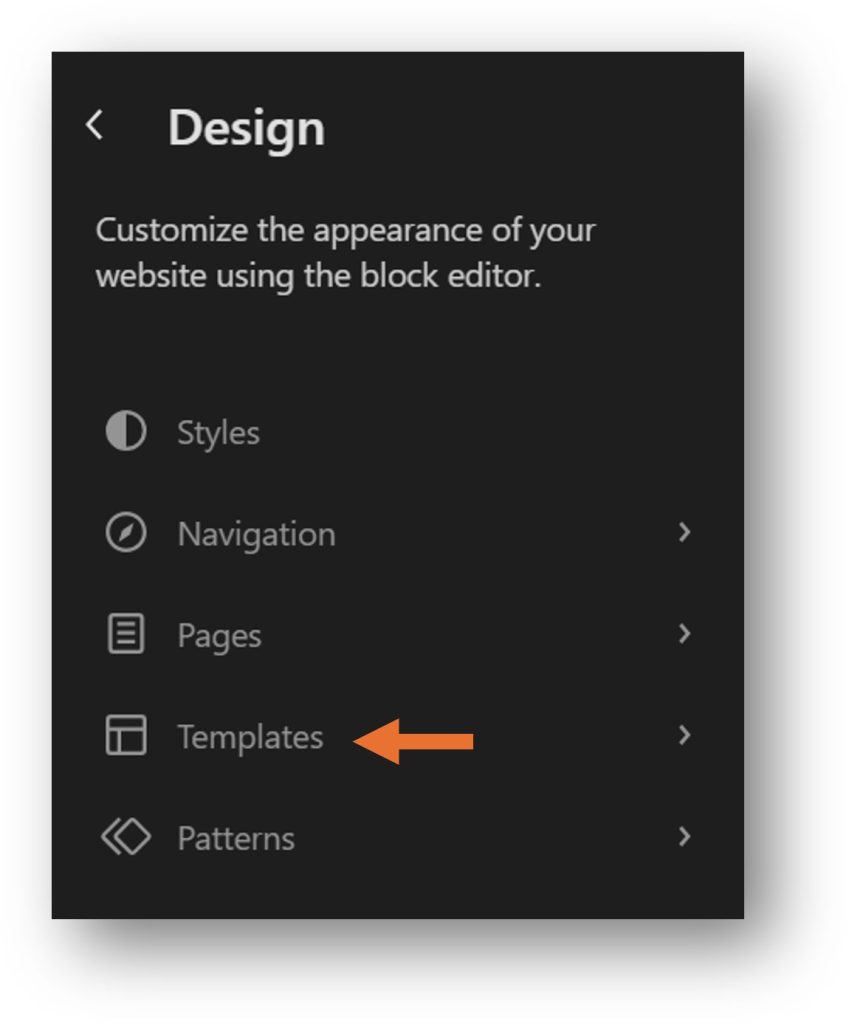
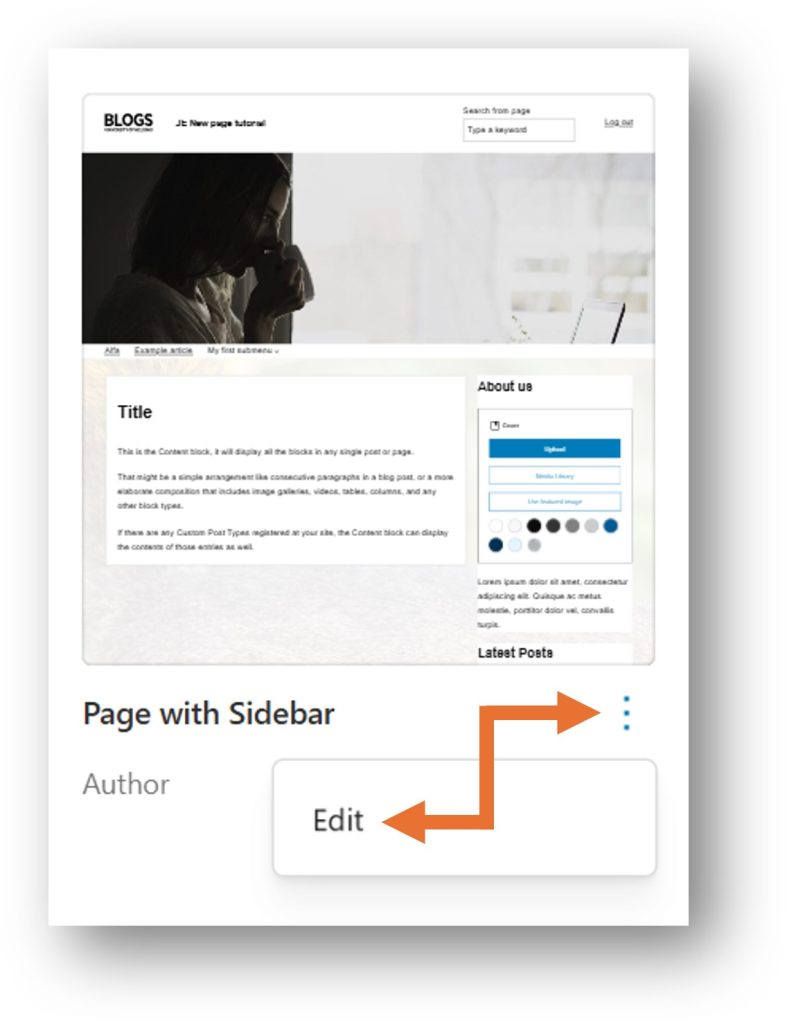
3. Under Templates, you should now see all of your theme’s templates in the view on the right. For the template you want to edit, click the three dots next to its name and select Edit.
4. Next, scroll down the page and locate the Follow us element.
Note: At this stage, you could also edit the social media links to point to your own channels, instead of hiding the element.
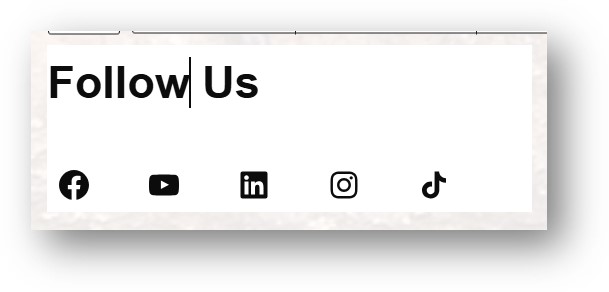
Click on the Follow us text until you see the text cursor blinking inside it. Make sure that no purple or blue outlines appear around the element, as shown in the example image.
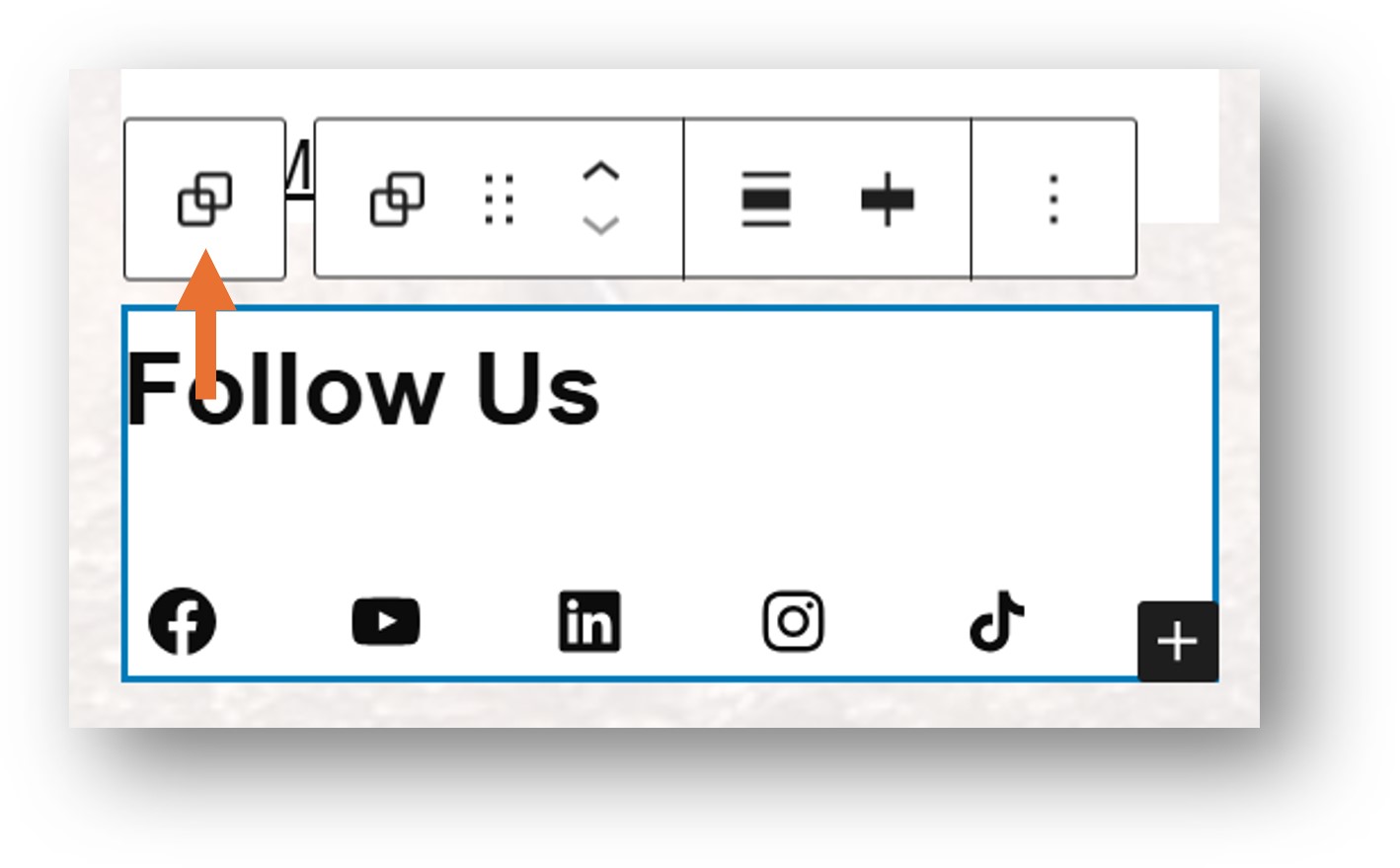
5. Now click Select parent block: Group at the top left of the element to select the entire Follow us block. You should see a solid blue outline around it, as shown in the example image.
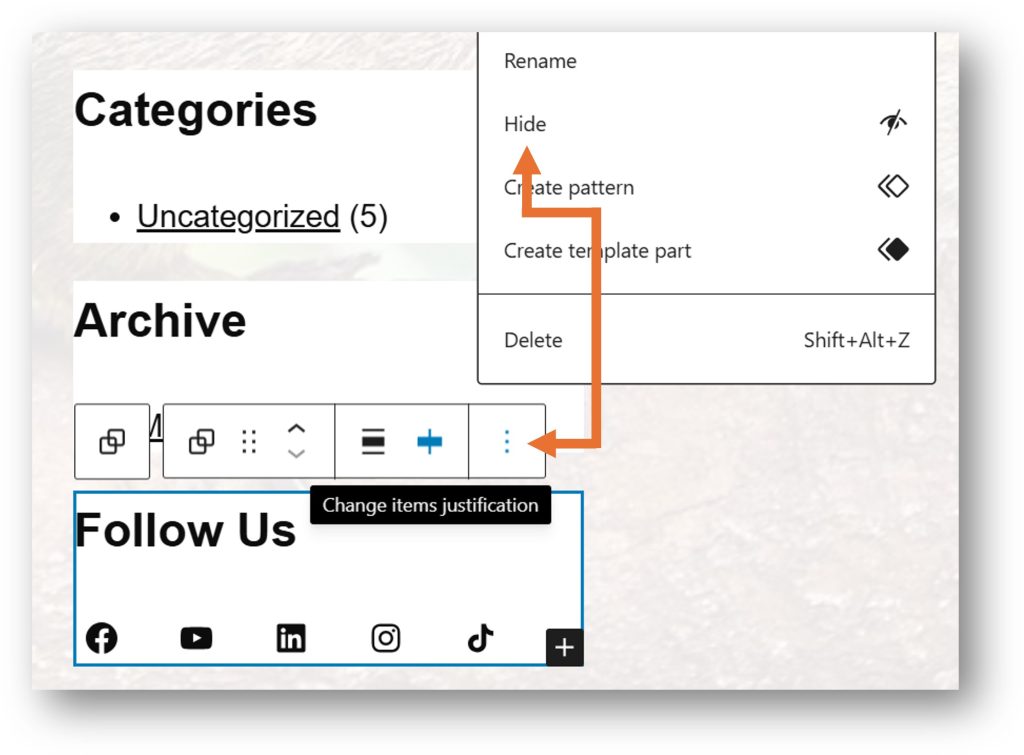
6. Now click the three dots in the top‑right corner of the element and select Hide. After this, the element should no longer be visible in the template editor.
7. Lastly, click Save in the top‑right corner of the screen (you may need to click it twice) to save and publish the updated template with the hidden element.
Below is an example of how the front page looks after the change — now without the Follow us element.
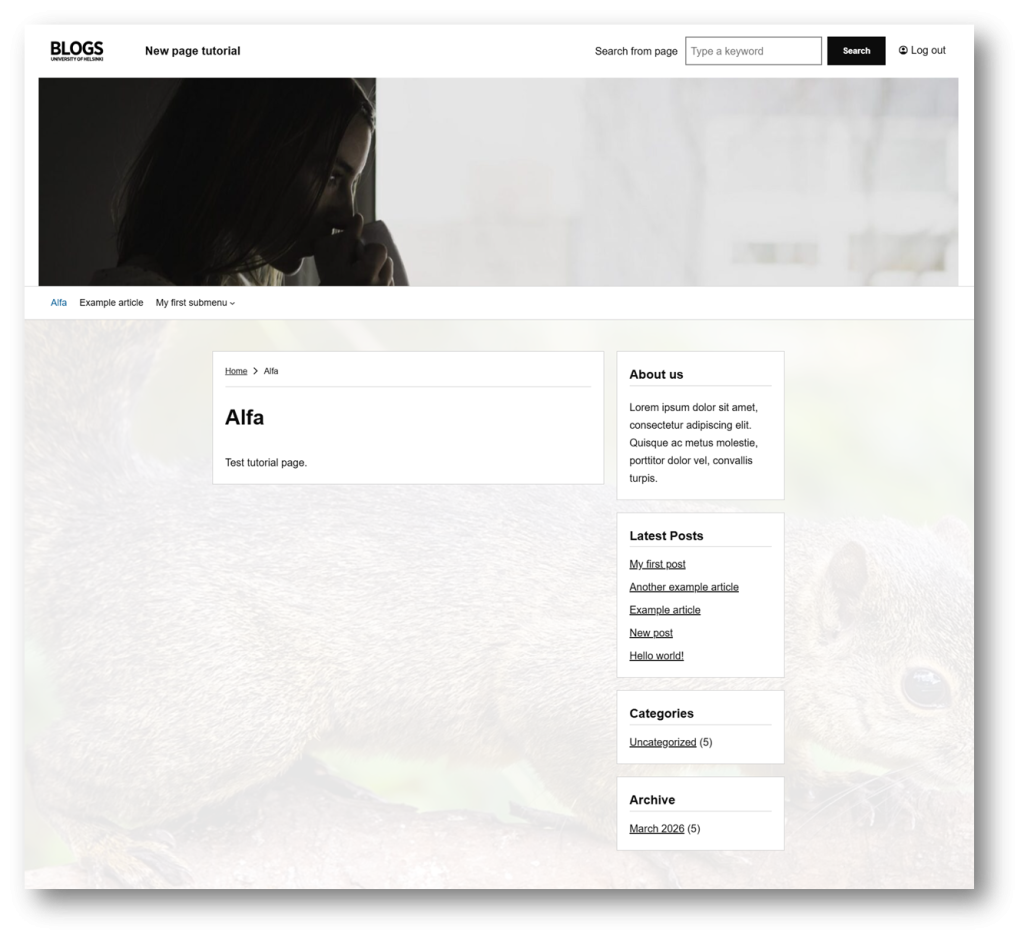
Please note: This change will affect all pages that use the specific element.
Resetting elements
In the steps above, we changed a pattern inside the page template. If something goes wrong — or if you want the Follow us element back — you won’t be able to reset the page template, because the change was made to the pattern inside it, not the template itself. In the following guide, we will show how to reset patterns.
1. From your blog dashboard, open Appearance, choose Themes, and then click Customize on the Blogs Helsinki 2026 theme.
2. Next, navigate to Patterns under the Design menu.
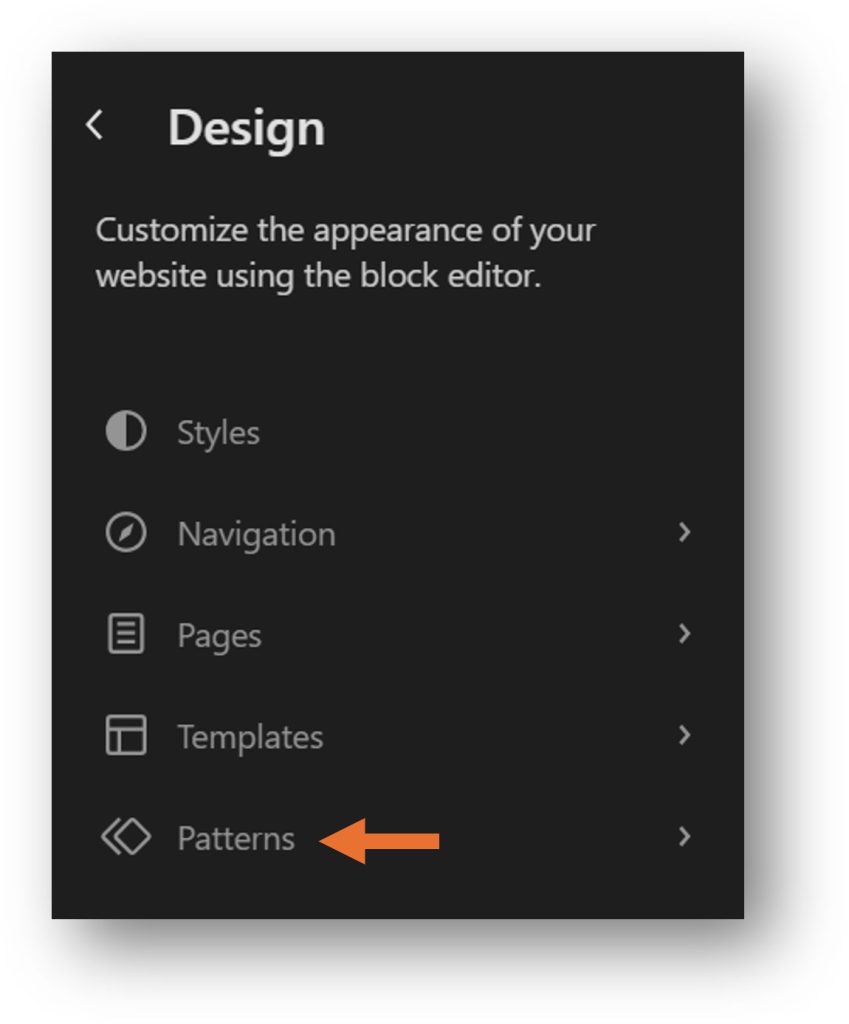
3. Now, select General in the Patterns view.view.
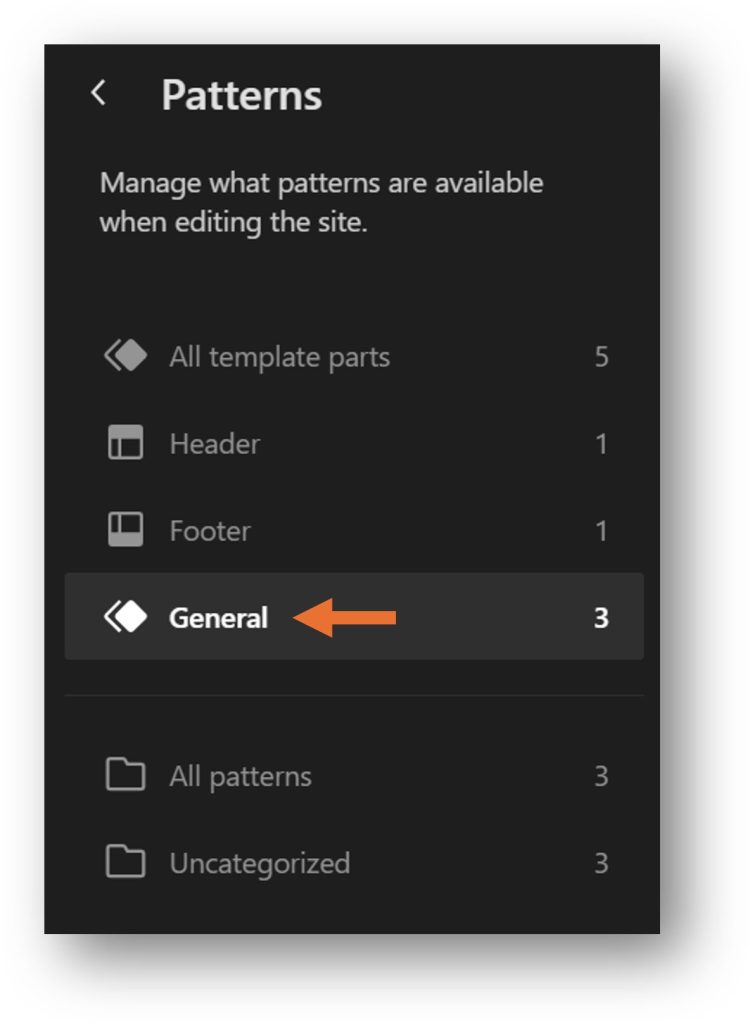
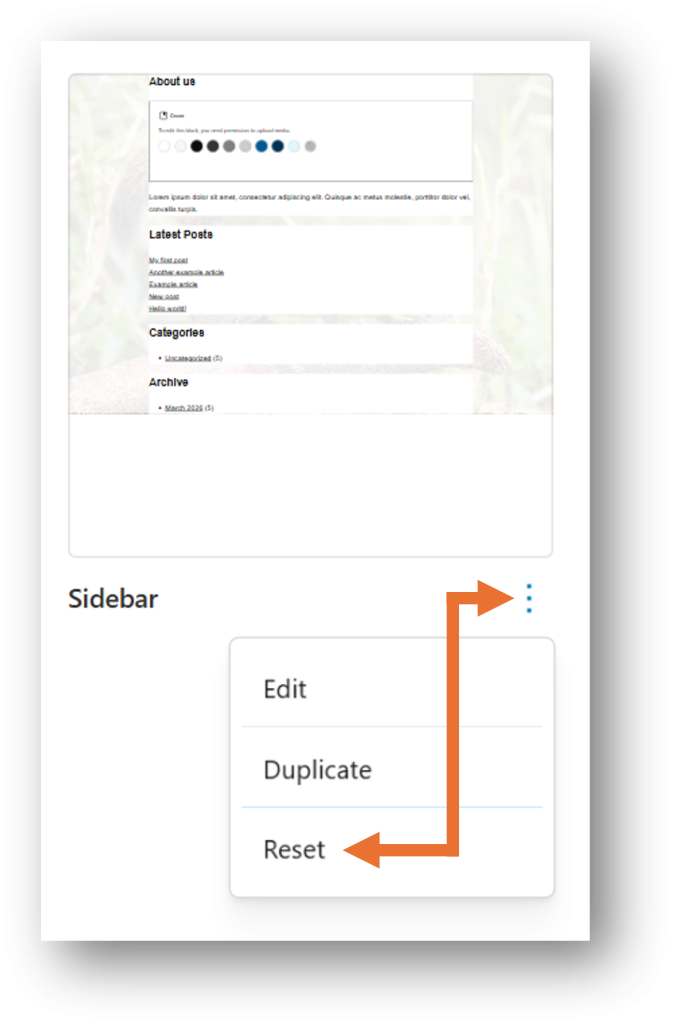
4. Now you should see the Sidebar pattern (not to be confused with the Archive Sidebar or Post Sidebar patterns).
To reset this element, click the three dots next to the pattern and choose Reset.
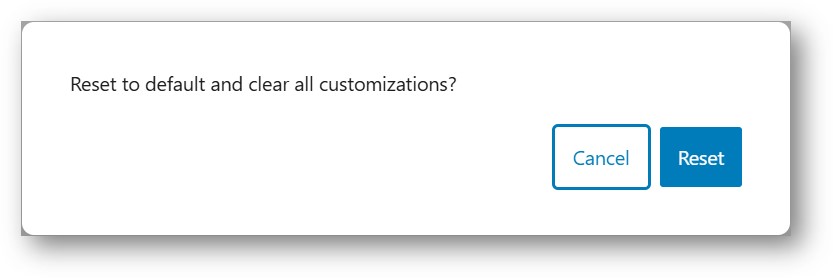
A confirmation window titled “Reset to default and clear all customizations?” will appear. Click Reset to confirm.
Please note: Resetting the pattern will restore all of its elements and remove any customizations you have made — including the changes made earlier in this tutorial.
END OF TEMPLATES GUIDE
Image Credits
Red-tailed squirrel (Sciurus granatensis chrysuros) male, Caldas by
Charles J. Sharp,
licensed under
CC BY-SA 4.0.
Source:
Wikimedia Commons
.
Changes made: Used in multiple pictures and displayed with lowered opacity. Image partially cropped in some pictures and possibly overlaid with WordPress editor elements.
_male_Caldas.jpg)