

To personalize your blog site using the Blogs Helsinki 2026 theme, you can replace the default images with your own. The cover image is blank by default, while the background image uses the theme’s preset picture. The steps below explain how to modify each of them.
Custom cover image (solid)
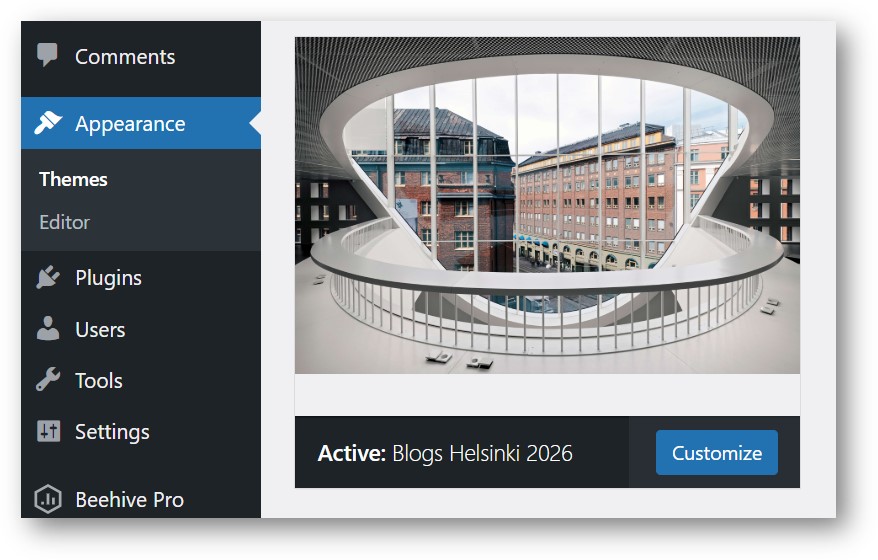
1. From your blog dashboard, open Appearance, choose Themes, and then click Customize on the Blogs Helsinki 2026 theme.
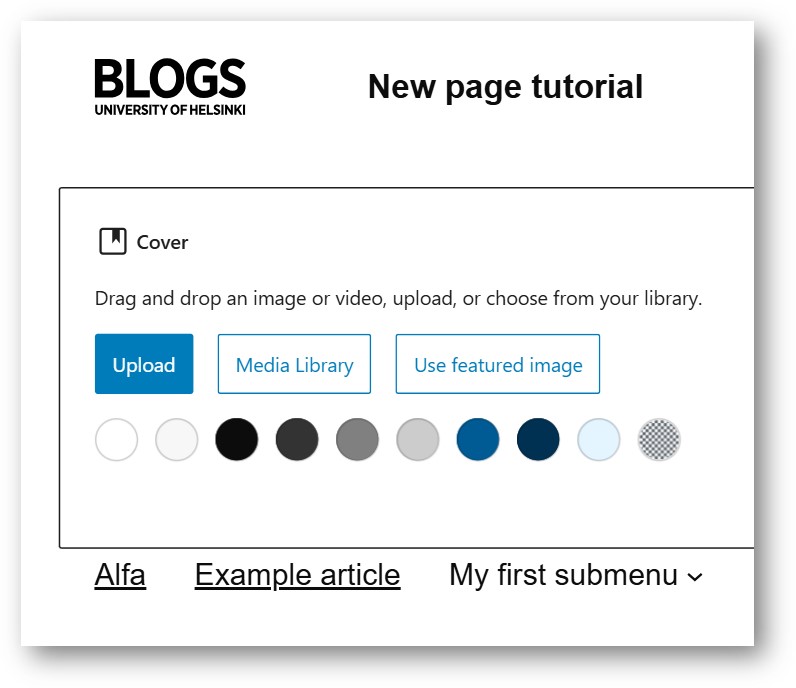
2. On the preview pane on the right, your Cover block should already be visible. Click directly on the cover area to make it active. Next, choose Upload to add an image from your computer, or Media Library to select an image that’s already stored in your blog. Locate and select the image you want.
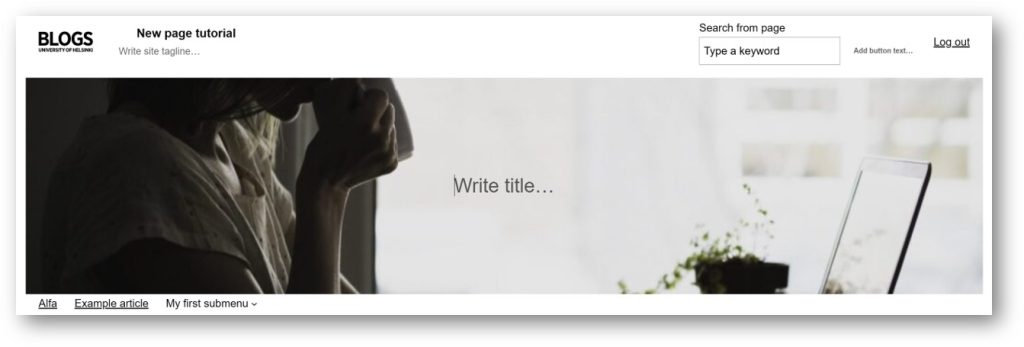
You should now see your selected image displayed at the top of the editor.
3. You can change which part of the image is centered by adjusting the focal point. Click on top of the uploaded image in the preview screen, and the Cover block settings will appear on the right. In the FOCAL POINT area, drag your mouse on the small preview image to choose what part of the image should be shown.
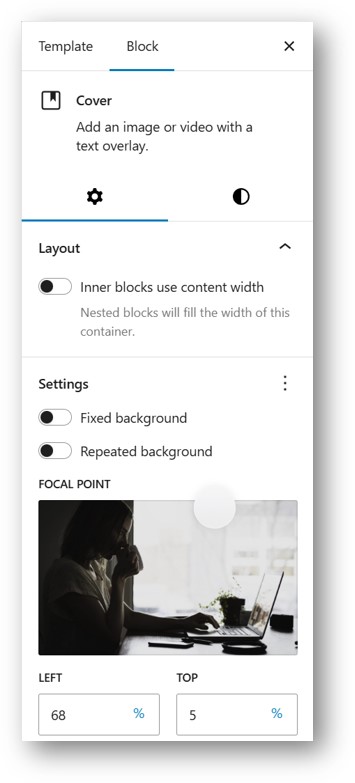
You should also see the cover image update in real time in the preview screen as you adjust the FOCAL POINT – setting.
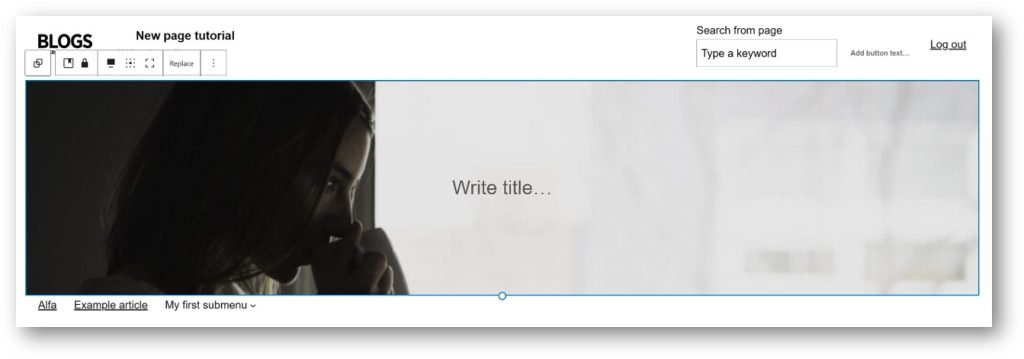
When you’re happy with your settings, click Save in the top‑right corner of the editor.

Your new cover image should now appear on your blog.
Custom background image
You can change the background image to your own custom picture. Note that the Blogs Helsinki 2026 theme adds a color overlay and some transparency on top of the background image so it matches the theme.
Tip: It’s recommended to use a large‑sized image for the background.
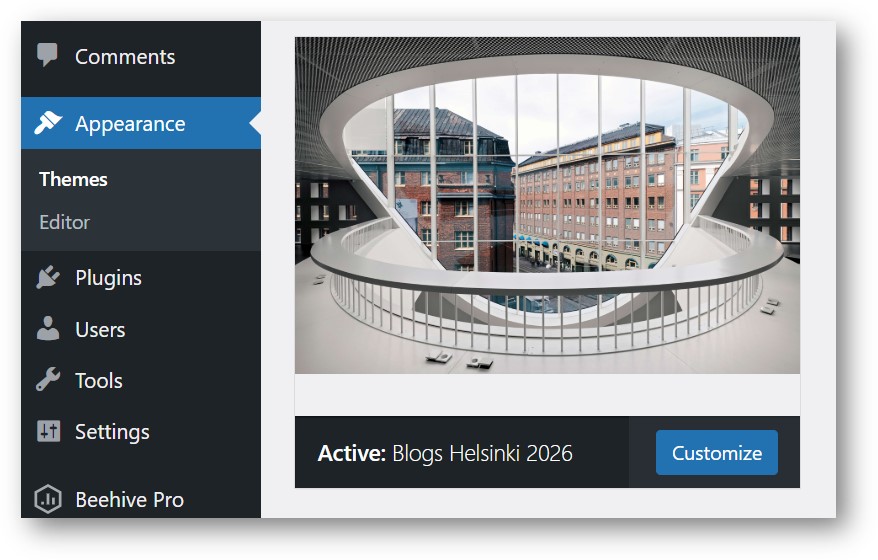
1. From your blog dashboard, open Appearance, choose Themes, and then click Customize on the Blogs Helsinki 2026 theme.
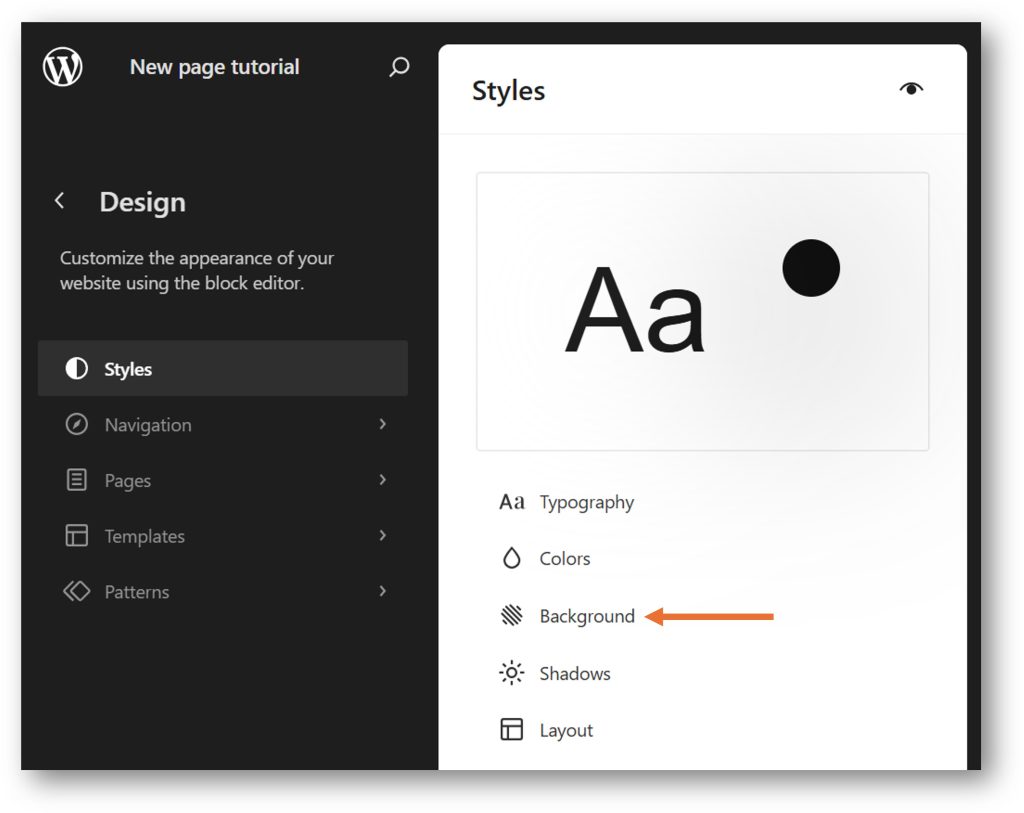
2. In the Design menu, go to Styles, and then click Background to open the background image settings.
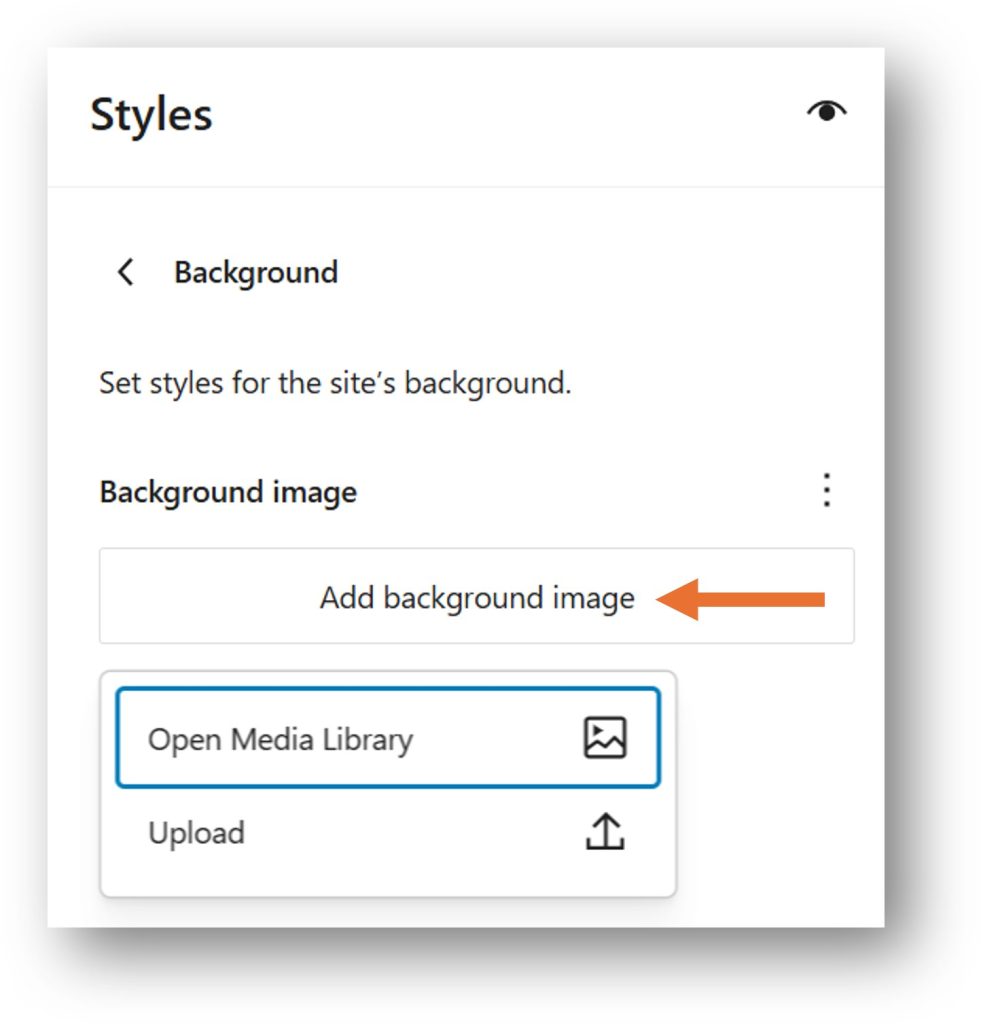
3. On the next screen, choose Add background image, then either upload an image from your computer by selecting Upload, or pick an existing image from your blog’s gallery by clicking Open Media Library.
You should now see your background image displayed in the preview on the right, with the theme’s built‑in opacity and color filters automatically applied.
4. You may want to adjust the background image settings. To do this, click the name of the image you just added to open its settings in the left‑hand panel.
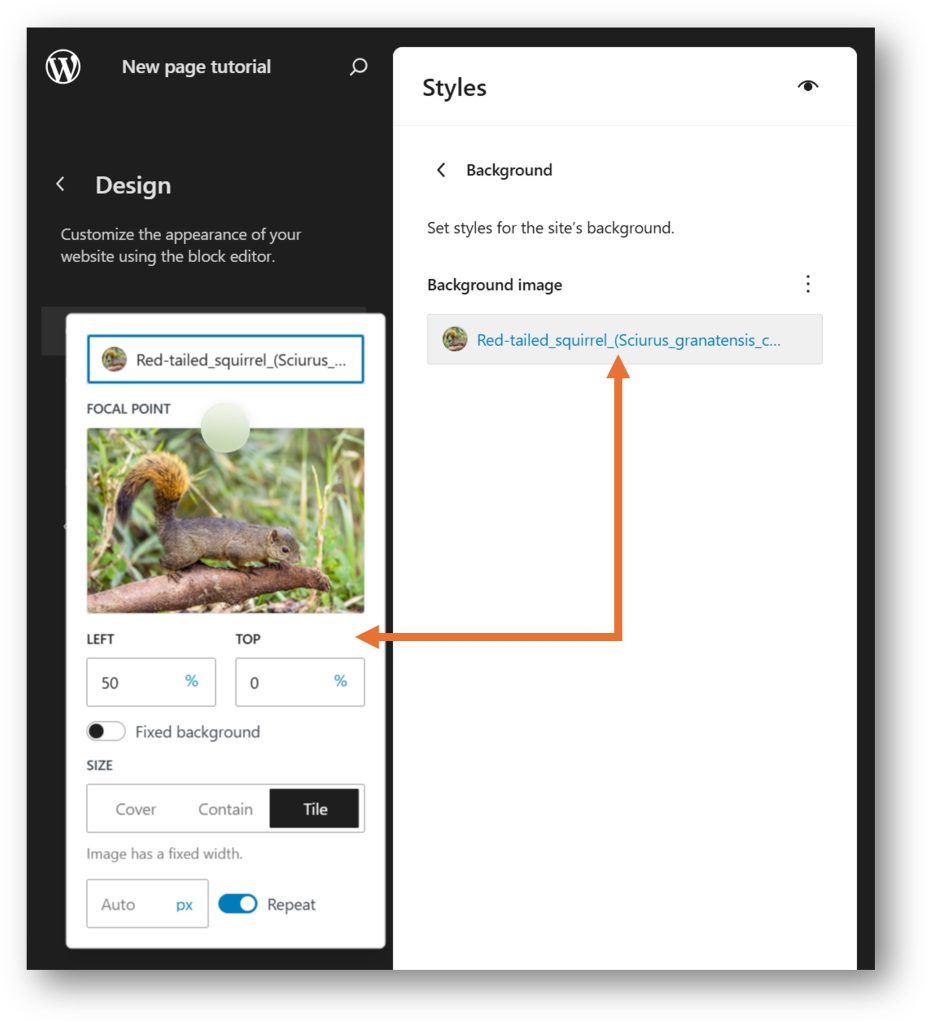
With this editor, you can adjust the focal point and other settings for the background image.
Fixed background means that the image will stay in place and won’t scroll along with the page when you scroll vertically.
The Cover option under Size fills the entire background area with your image, which might be suitable for most situations.
5. When you’re done editing your background image, click Review X changes… at the bottom left of the editor. In the Review changes window, click Save to apply the update.

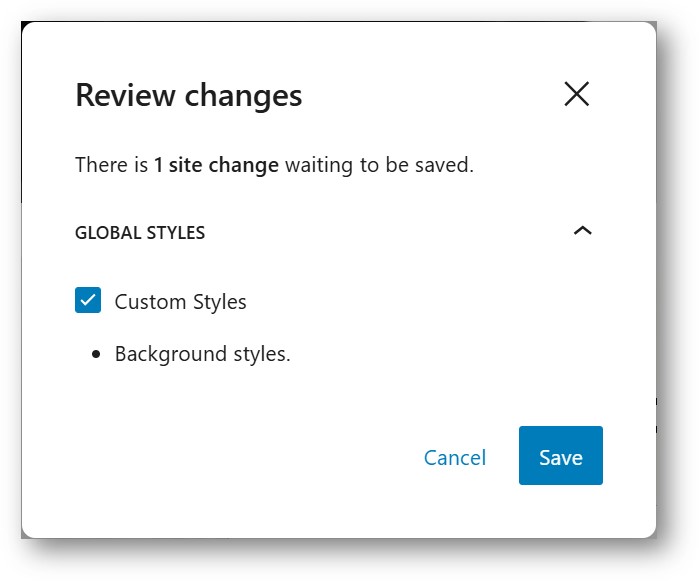
Your custom background image is now saved and will appear on your public site behind the content area.
END OF COVER AND BACKGROUND IMAGES GUIDE
Image Credits
Red-tailed squirrel (Sciurus granatensis chrysuros) male, Caldas by
Charles J. Sharp,
licensed under
CC BY-SA 4.0.
Source:
Wikimedia Commons
.
Changes made: Shown in Wordrpess Focal point editor with additional overlay.
_male_Caldas.jpg)