

The default theme (Blogs Helsinki 2026) is designed to be used with the block editor. Unlike the previous default theme (HelsinkiUni 2017), editing content in the new theme works differently because it uses a block‑based approach.
This guide briefly explains what blocks are and how you can use them to build your site. It also includes practical examples of common blocks at the end.
What are blocks?

Blocks are the modular building pieces you use to create your WordPress site—much like toy bricks. Each block represents a single element, such as text, an image, or a button, and you can add, move, and style them directly within the block editor.
Blocks are the main building elements used in page and post content.
They can also be used in templates, headers, footers, and other site parts. However, please note that modifying theme‑level elements in Blogs Helsinki 2026 may cause some built‑in features to stop working as intended. Fortunately, these design elements can be reset if needed.
Editors
Using blocks also requires that you are working with a block‑compatible (modern) editor.
With modern themes, using the Classic Editor is no longer recommended. The Classic Editor is the older interface with a single large content field, editable in either Visual or Code mode.
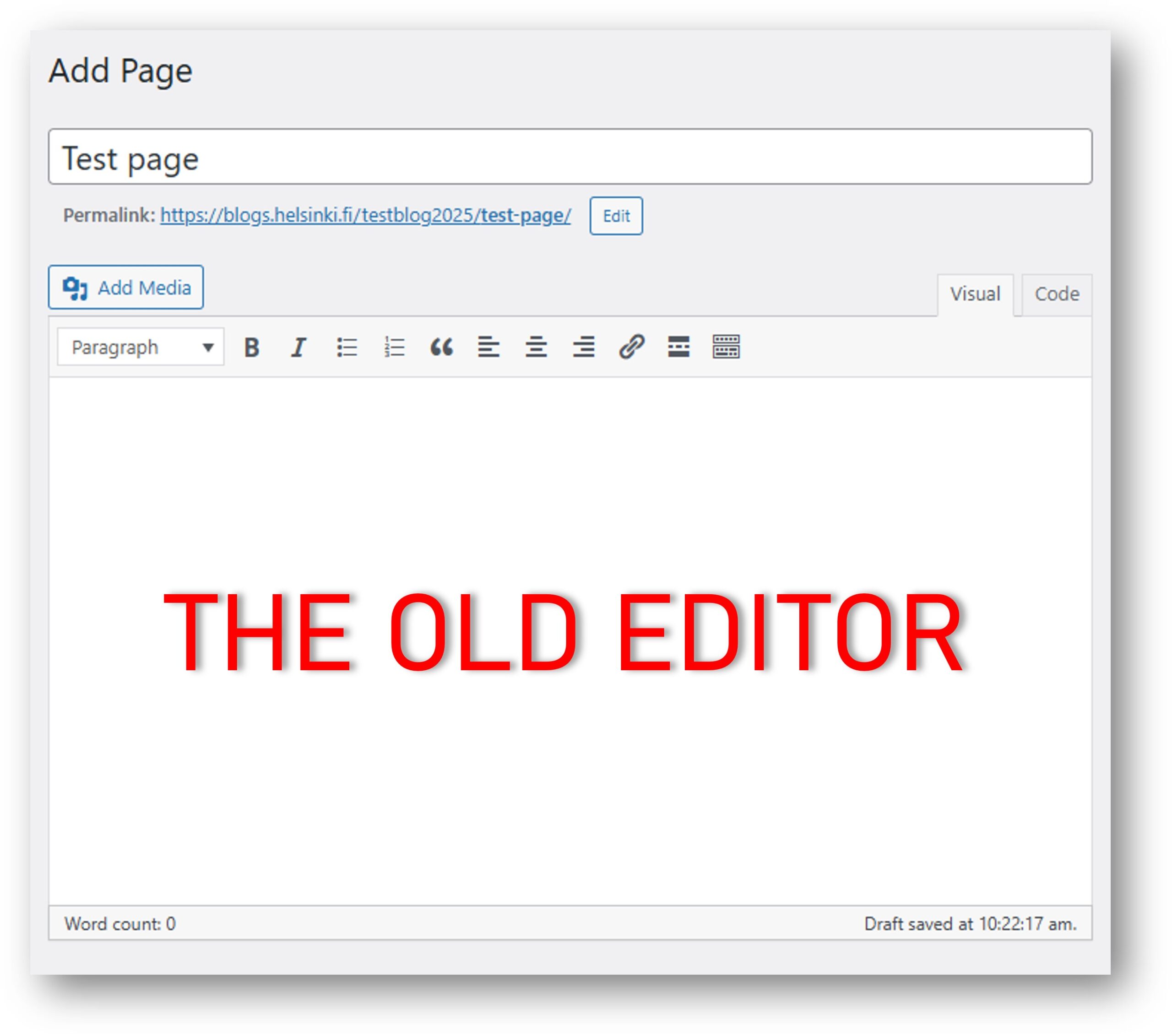
Newer themes—such as Blogs Helsinki 2026—are designed as block editor themes. This means that when you create or edit a page or post using the block editor, you’ll see an updated interface built around adding and arranging content blocks.
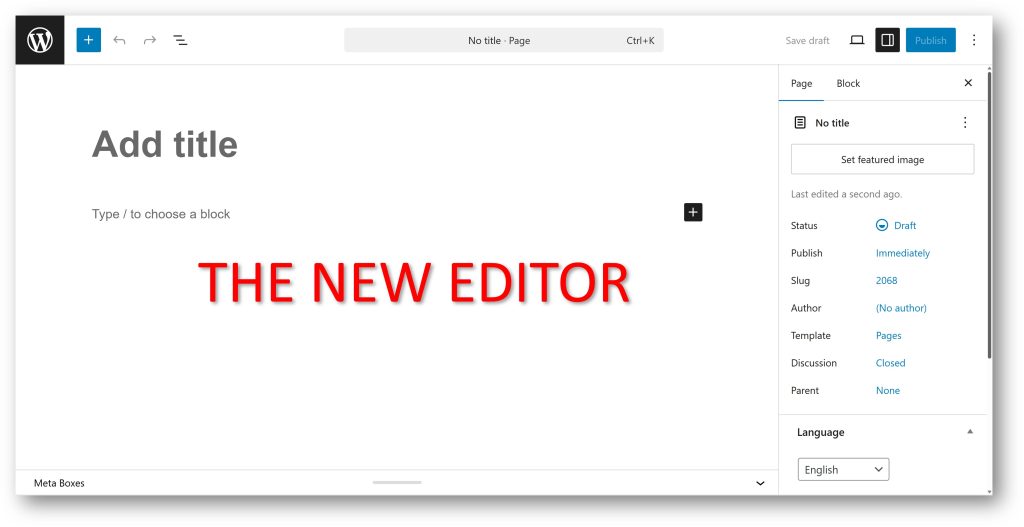
Please note: If you are using Blogs Helsinki 2026 theme or another modern theme on your site, it is recommended to use the block editor. If you are an administrator of a site, you can change the default editor from the blog Dashboard by navigating to Settings → Writing, and there choosing the Default editor for all users.
In the next chapter, we’ll walk through how to create content in the new editor using blocks.
Content creation tutorial
In the following example, we will create a new post using a few different blocks and show how the results appear on the actual page.
(The steps in this tutorial should also work for page‑type content.)
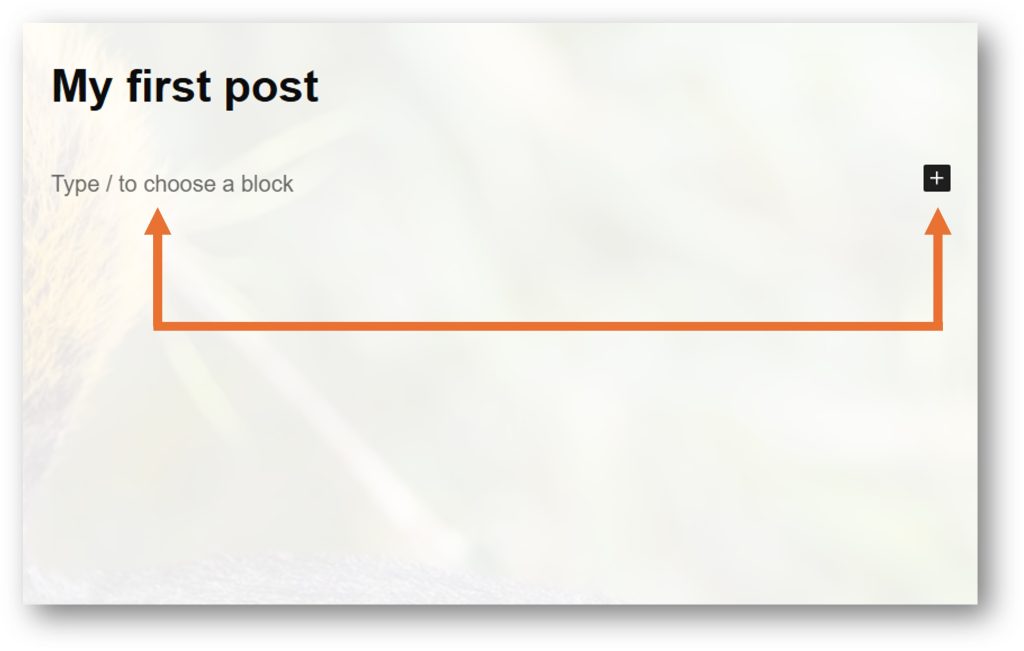
1. When you create a new post, the first thing you’ll see is a text field where you can enter the title of the post (or page). You can give it a suitable name. When published, the title becomes the basis for the page’s URL slug.

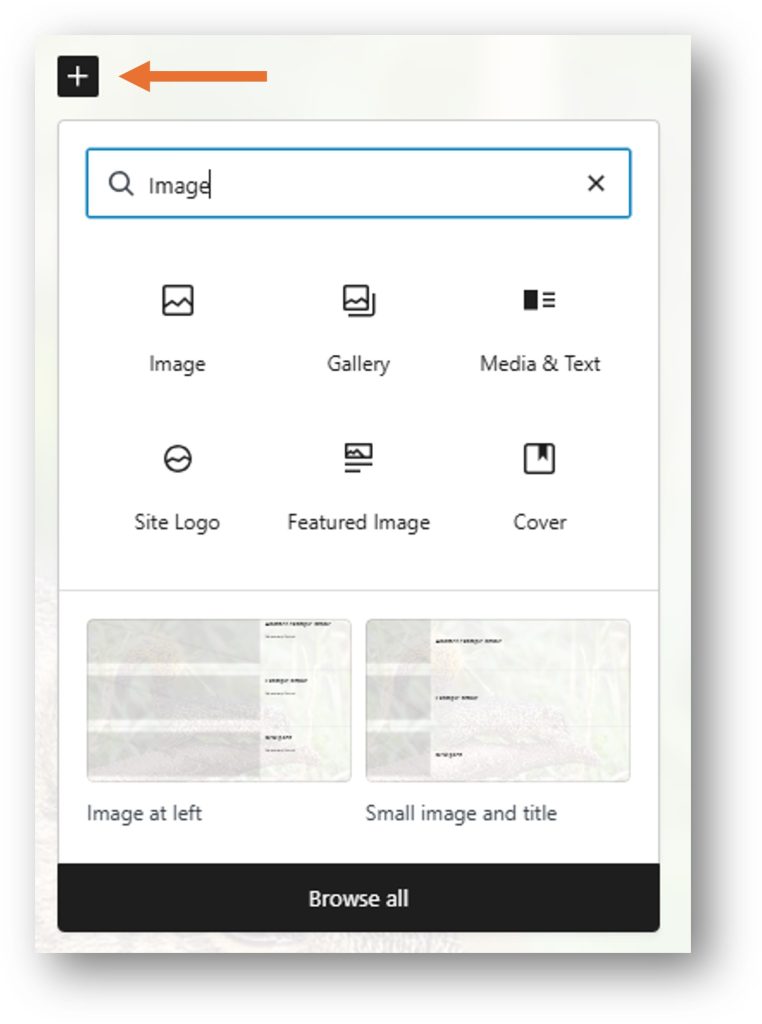
After naming the post, we could start typing on the next line to create a Paragraph block. However, in this tutorial we will instead click the block inserter button (the plus icon) and choose a Heading block.
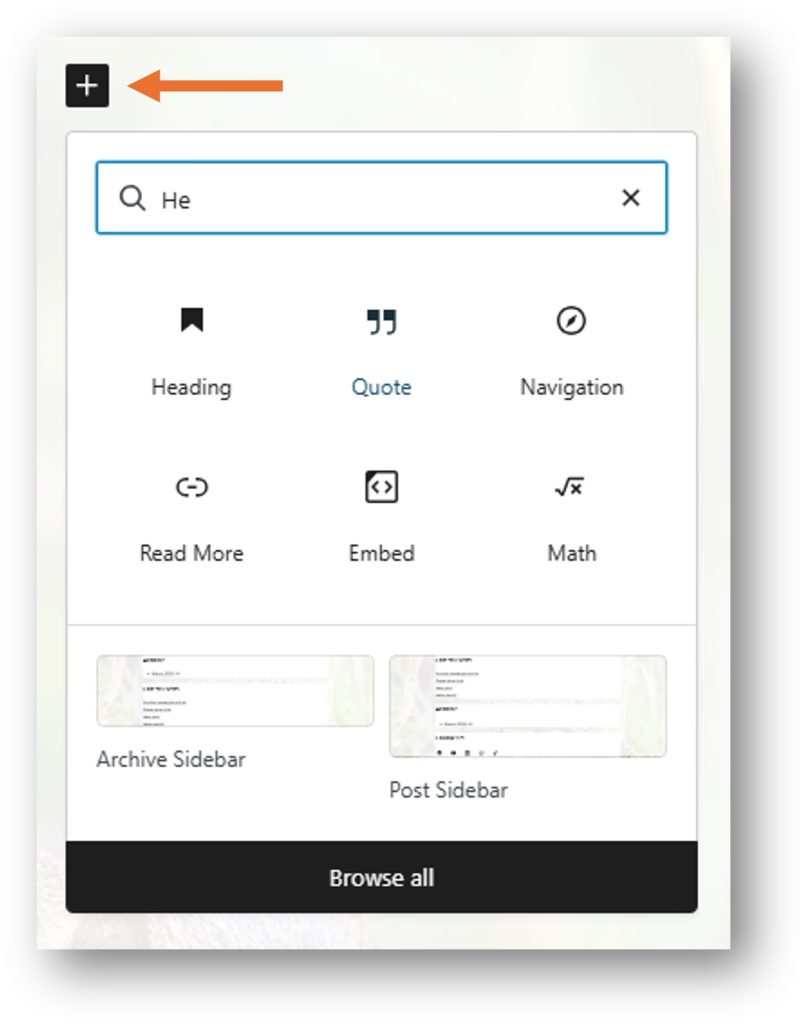
Additional tip: When selecting a block, you can also click the Browse all button at the bottom of the block inserter. This opens an extended panel on the left side of the editor, where you can choose, search, and browse all available blocks.
2. Once you’ve selected the Heading block, you’ll see a new block appear with the word Heading as its placeholder text.

You can click on it to type your own header text, and you can adjust the block’s settings either using the quick toolbar above the text or the extended block settings panel on the right.
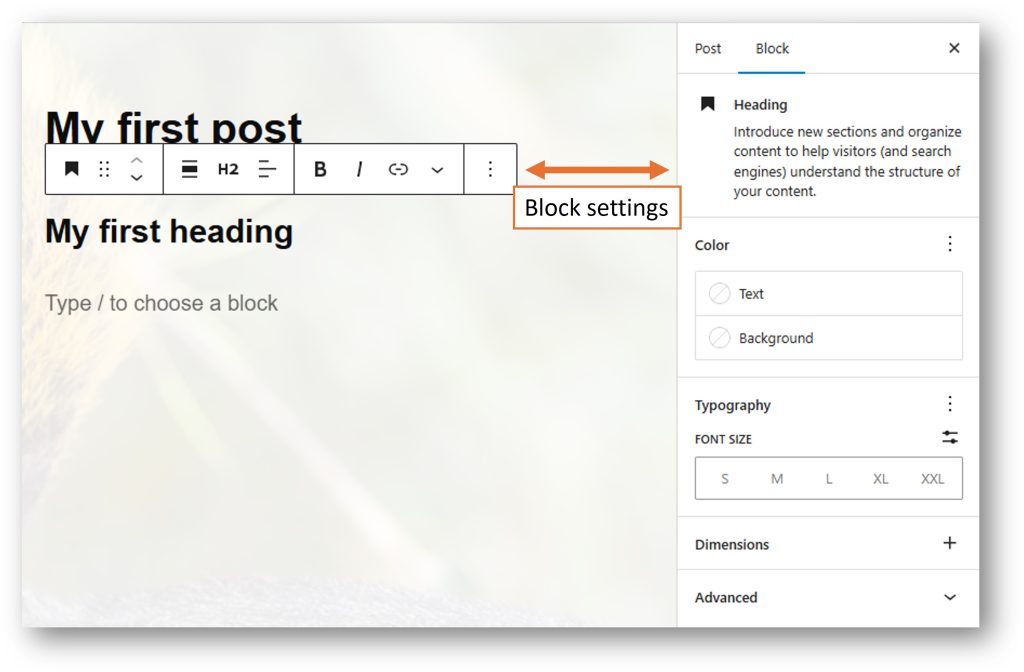
Additional Tip: If you want to change the heading size quickly, click the Change level button in the quick toolbar. It shows the current heading level (in the image above, the button displays H2).
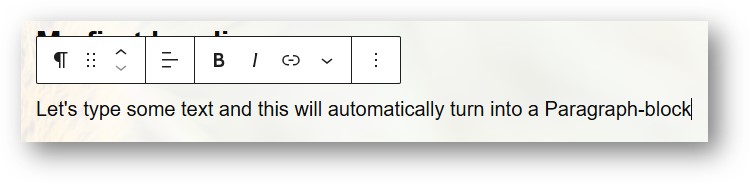
3. On the next available row, which displays “Type / to choose a block,” simply click the text area and start typing. WordPress will automatically create a Paragraph block.
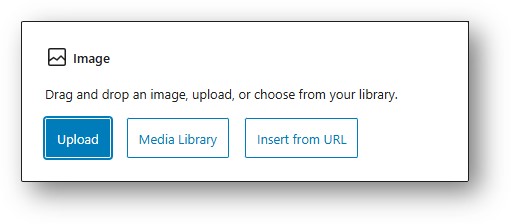
For the next row, click the add‑block icon once more and insert an Image block. You can upload a new image from your computer or choose one that already exists in your Media Library.
Additional Tip: If you want to add several pictures at the same time, use the Gallery block. You can select multiple images from your computer or from the Media Library, and WordPress will automatically arrange them as a gallery.
4. After adding the image, your editor should look something like this.
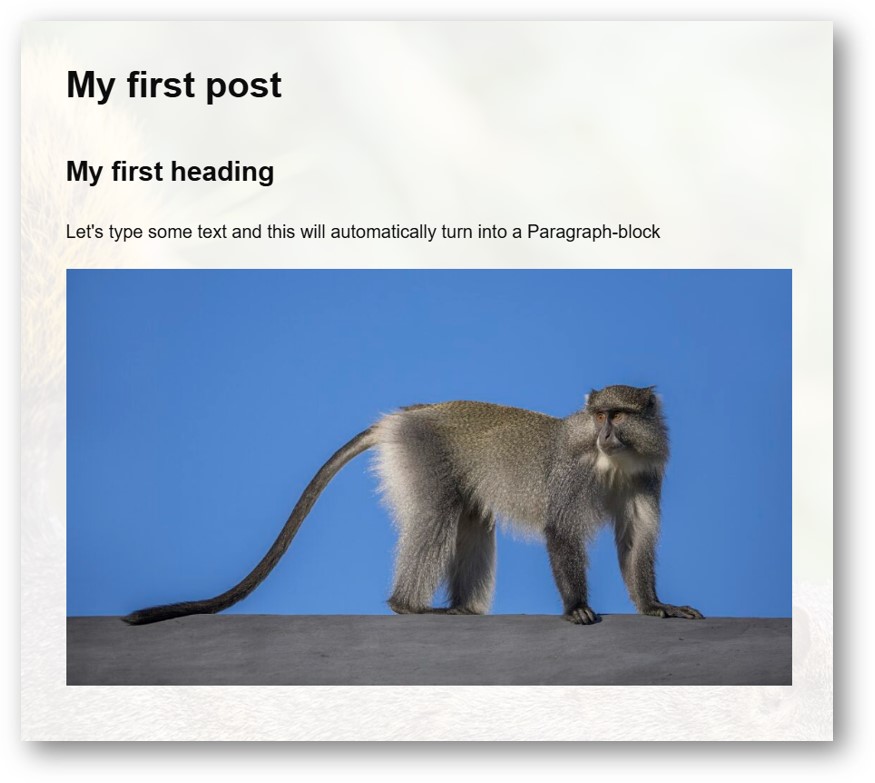
Next, we’ll save the post by clicking either the blue Publish or Save icon in the top‑right corner of the editor.
5. Finally, when viewed on your site’s public front end, your post should look something like this.
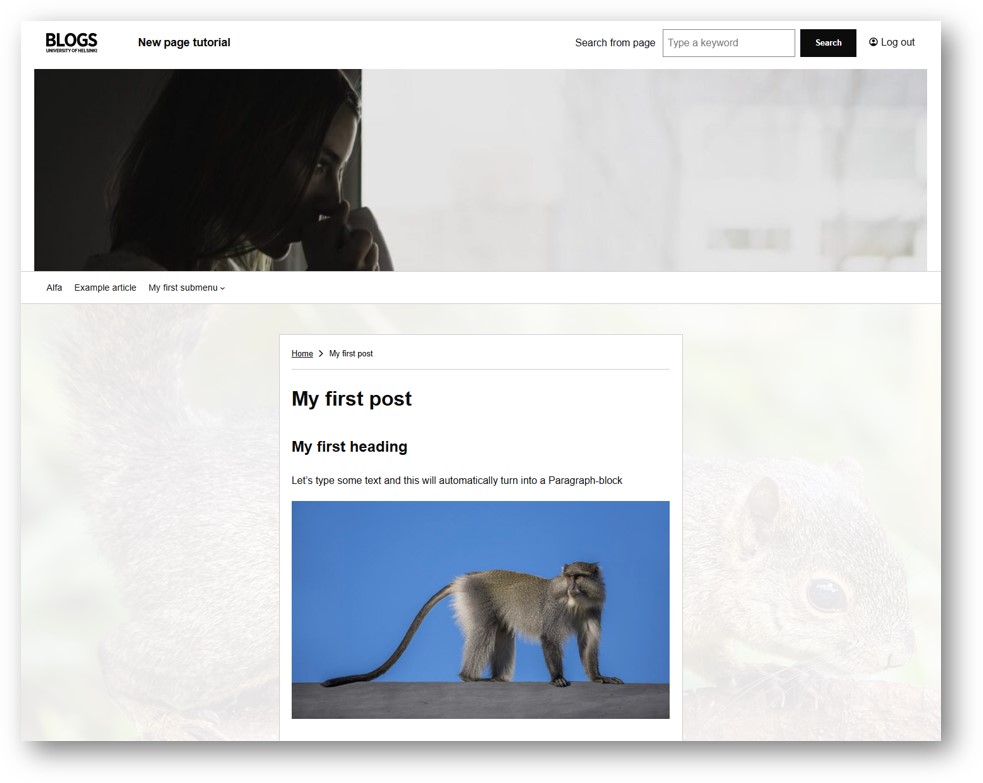
This example showed the basic steps for getting started with blocks and creating content on your blog site.
Examples of blocks and their features
The block editor supports dozens of different blocks, each designed for different use cases.
Below are some example blocks that may be useful for your needs. The block name and icon appear in the left column, while the right column demonstrates how the block looks on the public site. (On mobile devices, the Columns block may display the columns on top of each other instead of side by side.)
Block name
How it appears
Paragraph

This block uses paragraph. You can write text and start blogging!
Heading

This is a Heading block using the H4 size. The heading sizes range from H1 (your page or post heading) all the way to the smallest H6.
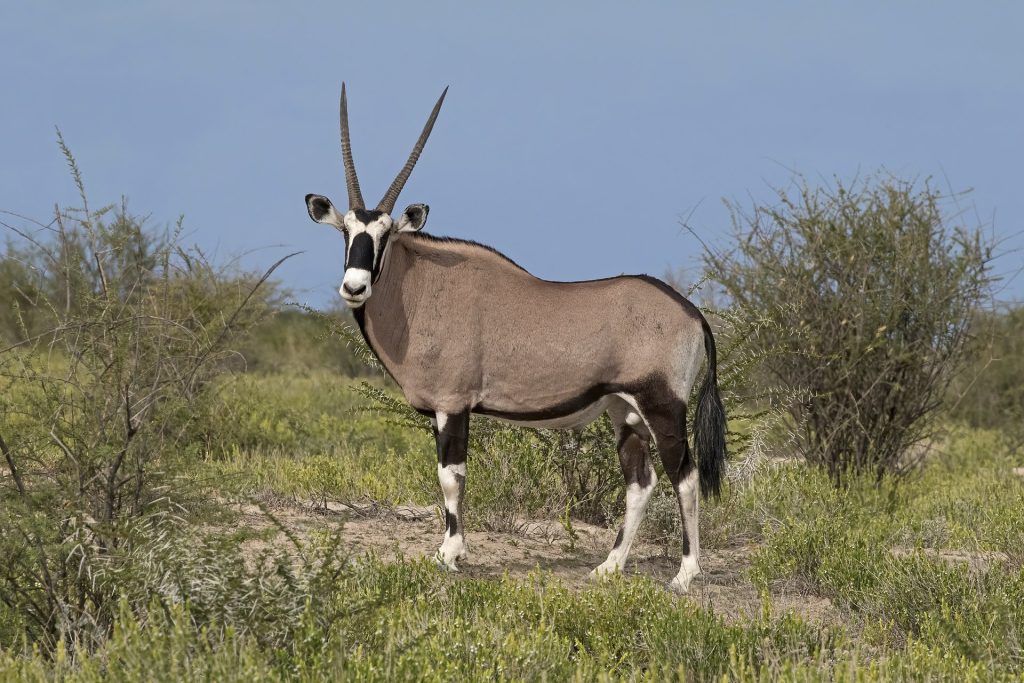
Image

List

- This is a List block.
- You can create lists
- Of things you need
- To list
Buttons

Columns

If you want to place blocks
- Side
- By
- Side
You can use the Columns block.
Separator

Want to separate blocks with a line like this?
Then you can use the Separator block.
Spacer

Need some extra space between blocks?
Just add a Spacer block! You can adjust its height in the block settings.
END OF BLOCK EDITOR BASICS GUIDE
Image Credits
Samango monkey (Cercopithecus mitis erythrarchus) Mount Sheba by
Charles J. Sharp,
licensed under
CC BY-SA 4.0.
Source: Wikimedia Commons.
Changes made: Used in multiple pictures, embedded within another images.
_Mount_Sheba.jpg)
Gemsbok (Oryx gazella) male by
Charles J. Sharp,
licensed under
CC BY-SA 4.0.
Source:
Wikimedia Commons
.
_male.jpg)
Red-tailed squirrel (Sciurus granatensis chrysuros) male, Caldas by
Charles J. Sharp,
licensed under
CC BY-SA 4.0.
Source:
Wikimedia Commons
.
Changes made: Used in multiple pictures and displayed with lowered opacity. Image partially cropped in some pictures
_male_Caldas.jpg)