

By default, the Blogs Helsinki 2026 theme lists your Pages in alphabetical order in the top navigation bar (note that Posts are not included automatically).
If you want to add other types of content to the navigation bar or create a functional dropdown menu, you’ll need to switch from the automatic menu to a manual one. This guide will show you how to do that.
Switching the Menu to Manual Mode
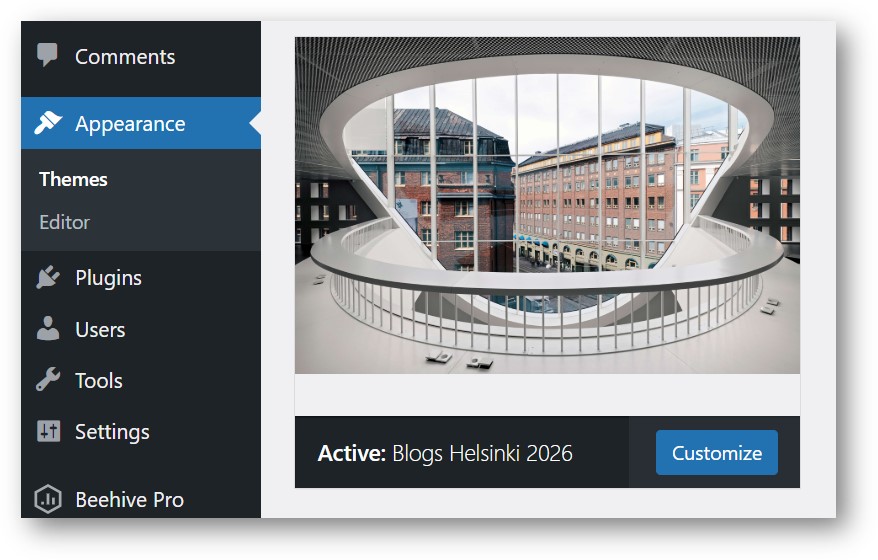
1. From your blog dashboard, open Appearance, choose Themes, and then click Customize on the Blogs Helsinki 2026 theme.
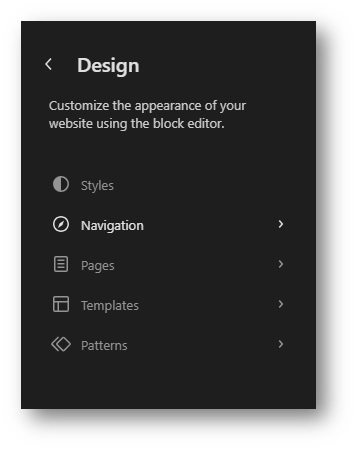
2. Under Design, click Navigation.
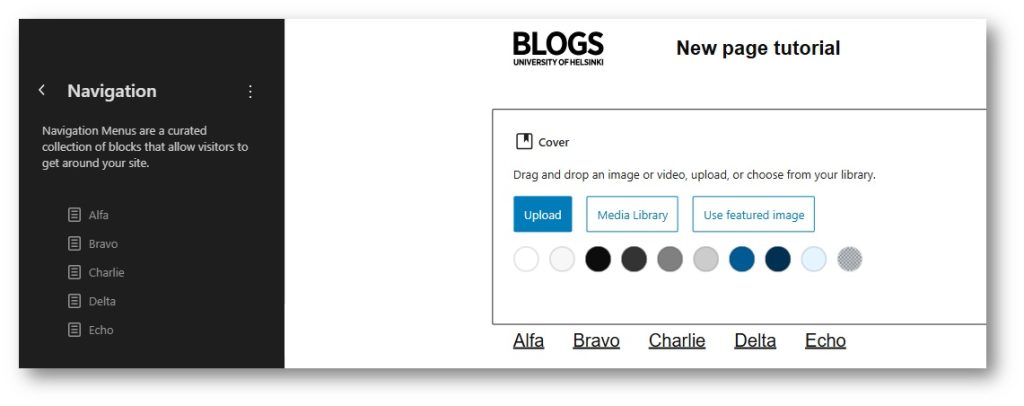
3. Here you should see your automatically populated navigation menu under Navigation, as well as the same menu shown on the preview/editor screen to the right.
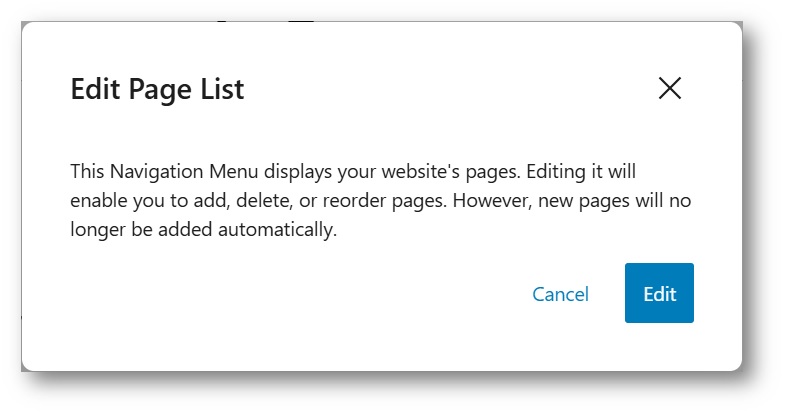
4. Click one of the menu items under Navigation on the left. This will open the Edit Page List window. Then click Edit to convert your navigation menu from automatic to manual.
Please note that your changes will not take effect until you select Review X change… at the bottom left, and then confirm by clicking Save in the Review changes window.
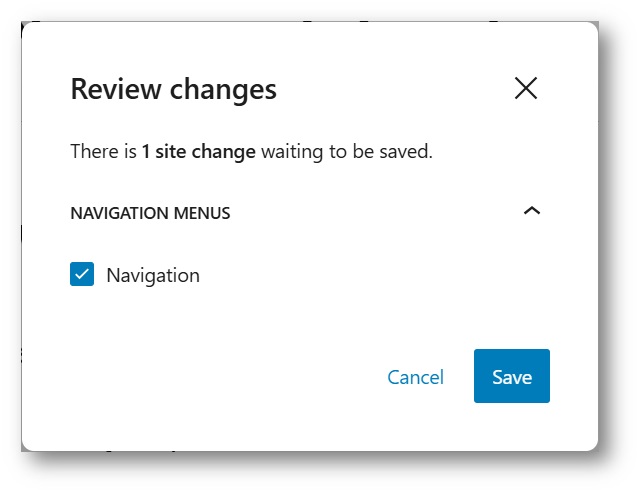
After you click Save, your menu switches to manual mode. No new content will be added to it automatically, and you can modify the menu as needed.
Creating a custom menu
When the menu is in manual mode, you can customize it by adding or removing blocks. In the following tutorial, we will create a custom menu using Page, Post, and Submenu blocks.
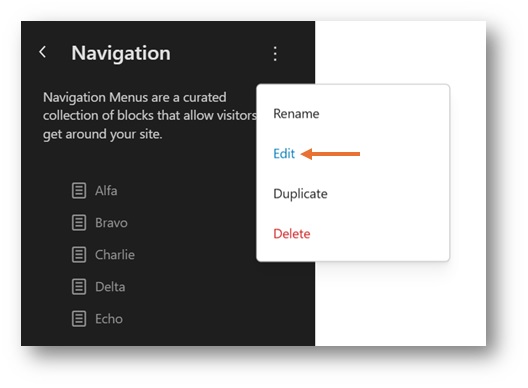
1. We’ll begin by returning to the Navigation view. Then click the three dots to the right of the Navigation label and select Edit.
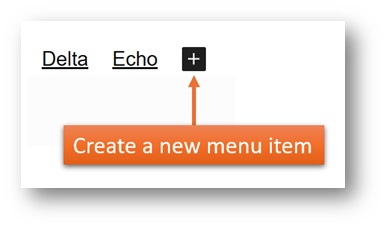
2. Your menu items should now be visible in the center of the preview screen. To add a new item, click the menu in the preview, and then click the plus (+) symbol that appears.
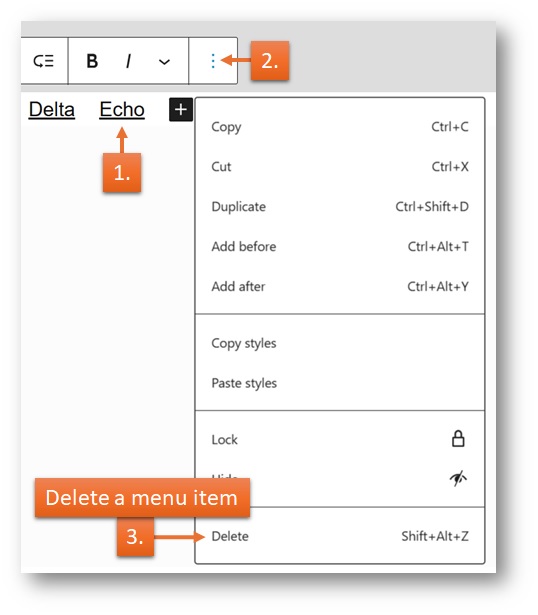
To remove an item, click it to select it, open the three‑dot menu in the toolbar above, and choose Delete.
3. By default, any new item you add to the menu will be a Page Link block. This type of block allows you to search for the pages already created in your blog and insert them as menu items.
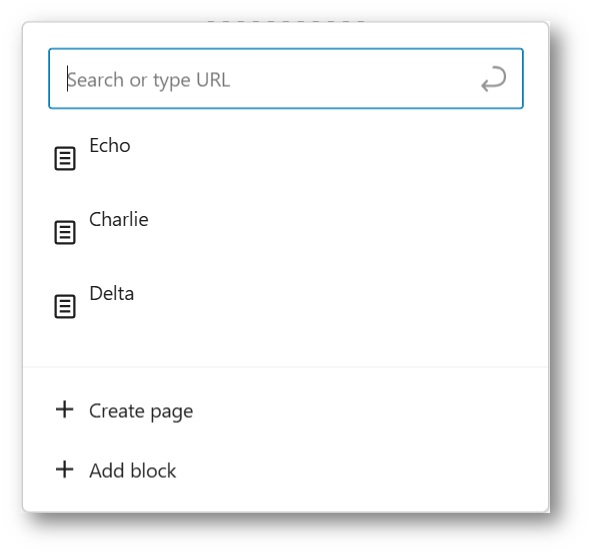
Please note: Posts (Articles) are not available through this block. To add posts, you must use the Post Link block instead.
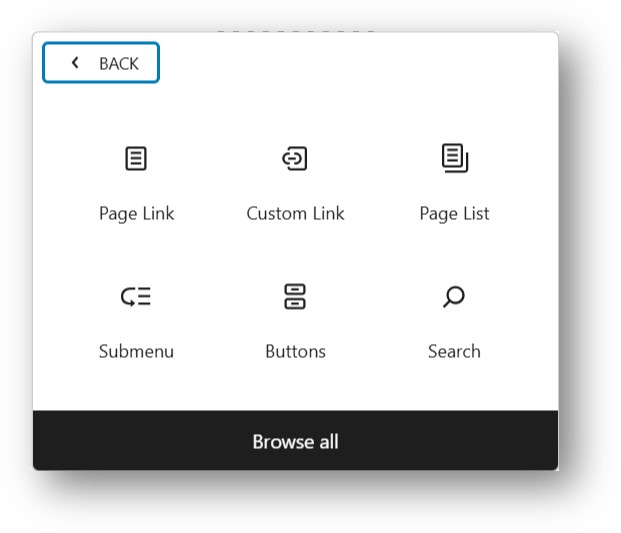
4. If you want to add a different type of item to your menu besides pages, you can also click Add block at the bottom of the previous Page Link block and choose the appropriate block type.
Two commonly used blocks in the navigation menu, besides Page Link blocks, are the Post Link block (to link a single article) and the Submenu block (to create a dropdown menu, which we’ll cover in the next section).
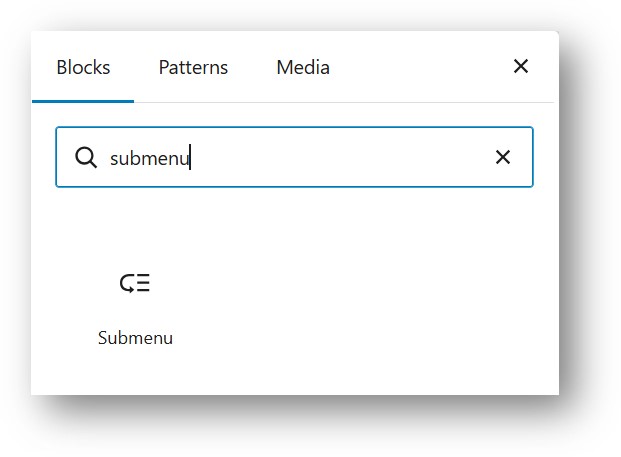
If these blocks are not immediately visible, you can find them by clicking Browse all at the bottom of the window and searching for the corresponding block.
Dropdown Menu
Note: The Blogs Helsinki 2026 theme is designed to support only first‑level dropdown menus by default. While it is technically possible to add additional submenu levels, the theme may not behave reliably with deeper structures.
For accessibility reasons, it is also recommended to avoid more than one or two submenu levels, as deeply nested navigation can be difficult for users to navigate.
5. To create a dropdown menu, add a Submenu block to the menu bar.
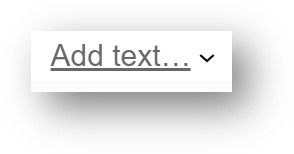
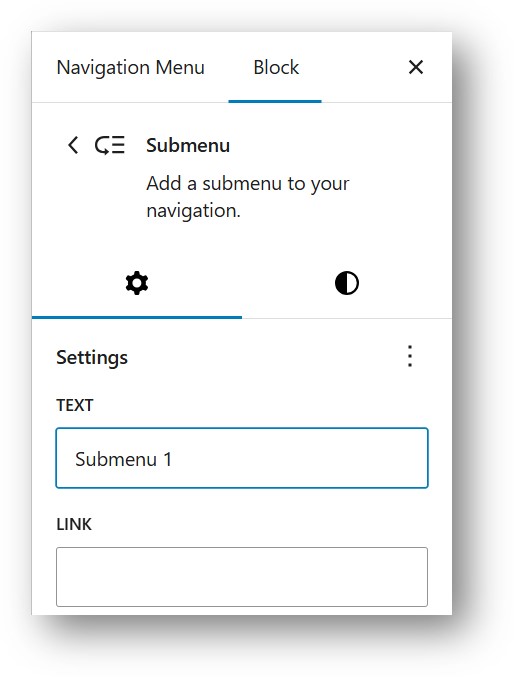
It’s recommended to name the Submenu first. Click on top of the new Submenu block (which by default says “Add text…”) and type the desired name in the Text field in the toolbar on the right. This name will be shown as the Submenu label in your navigation menu.
6.After you’ve named your Submenu, you can add blocks under it by clicking the small arrow immediately to the right of its name. (Clicking the Submenu name itself will edit the Submenu block instead.) Once the submenu expands, click the white-background plus (+) icon to add new items.
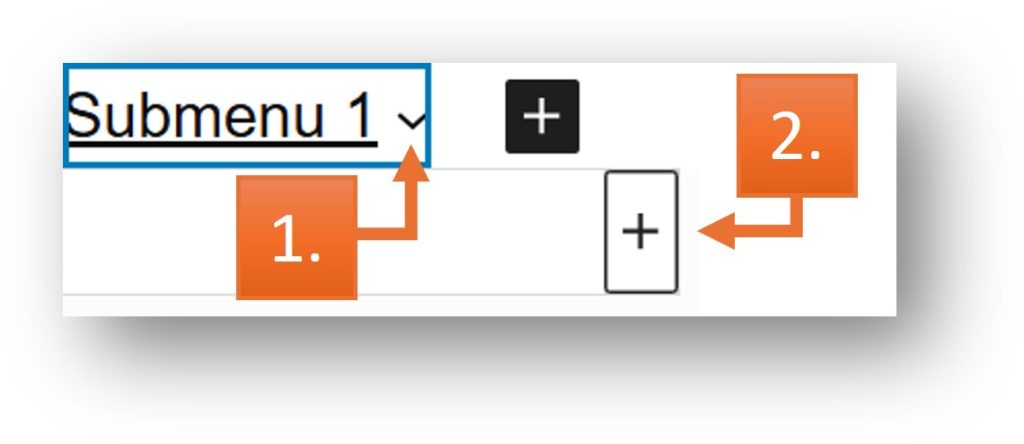
With submenus, the default block added is also a Page Link block, and you can follow the instructions from point 3 on how to add new items as blocks.
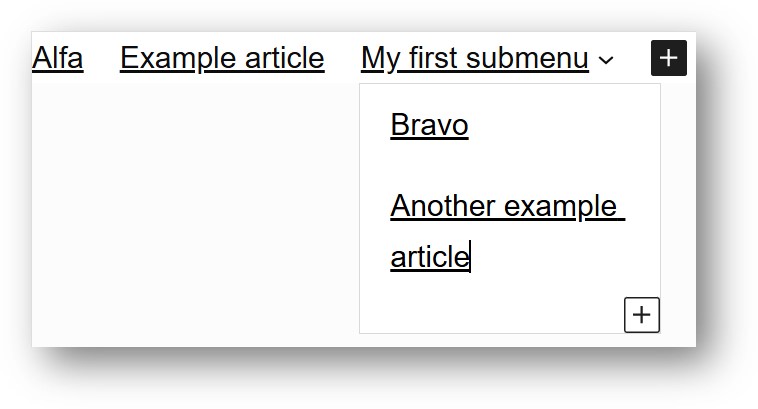
The only difference between adding items to the main‑level navigation menu and adding them inside a submenu is the plus icon you use. For the main menu, you use the plus icon with a black background. For submenus, you first expand the submenu using the small arrow, and then use the plus icon with a white background.
When you are done with your menu, make sure to save your changes by clicking the Save button in the top‑right corner of the editor.
Example custom menu
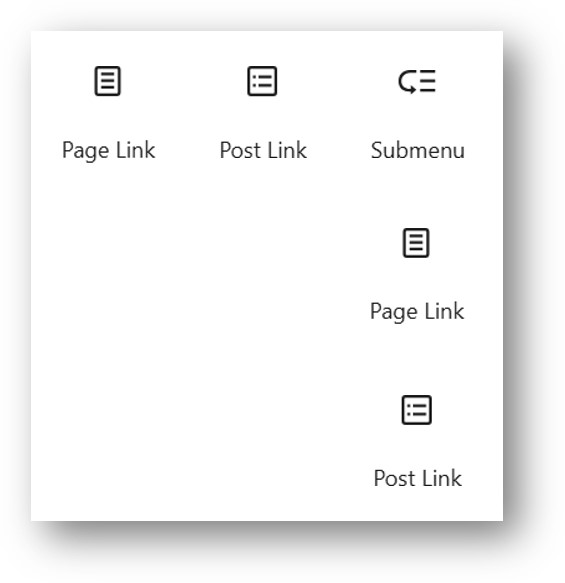
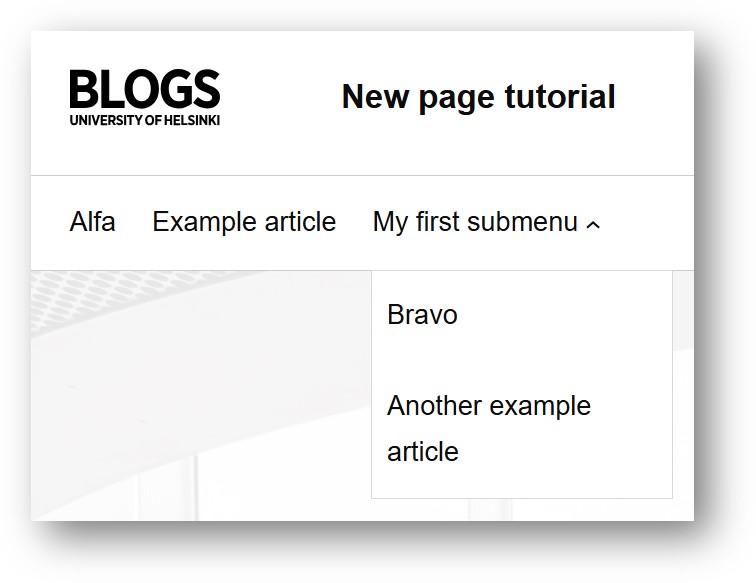
Lastly, below is is a reference image of a menu created in the editor that contains (from top left to right) a Page Link block, a Post Link block and a Submenu block.
The Submenu block in turn further contains (from top to bottom) a Page Link block and a Post Link block.
Editor view:
Used blocks:
Public menu:
END OF NAVIGATION MENU GUIDE